Connecting your digital piano to a tablet opens up new musical possibilities. This connection provides access to dedicated apps, interactive tutorials, and expanded sound libraries.
Yamaha models offer excellent interoperability with iOS devices. Wired and wireless options are available depending on the model, ensuring quick and easy setup.
With apps such as Yamaha Smart Pianist or Flowkey, you can get more from your practice sessions. Record your pieces, take online lessons, or customize your sounds in just a few taps.
This modern combination transforms your musical experience. It makes learning more enjoyable and creating music more intuitive.
Introduction
Modern instruments have revolutionized musical practice. Today, a digital piano does more than reproduce sounds. Thanks to its connectivity, it becomes a truly versatile device.
Tablets, and the iPad in particular, play a key role in this evolution. More than 60% of musicians now use these tools to compose or learn. Combining a keyboard with a tablet offers impressive possibilities:
- Access to thousands of sounds and effects
- Interactive learning with instant feedback
- Professional recording directly from your living room
Experienced artists share their impressions: “This setup has transformed the way I create. Everything feels smoother and more intuitive,” says a professional pianist.
The aim of this guide is to demystify the technology so that everyone can benefit from these advances. Whether you are a beginner or an expert, the steps have been simplified to help you get started quickly.
Digital music has never been so accessible. With the right information, your equipment can greatly expand your creativity.
What You Need to Connect Your Yamaha Piano to an iPad
Before diving into the world of digital music, make sure you have the right equipment. Proper preparation ensures a smooth, reliable connection.
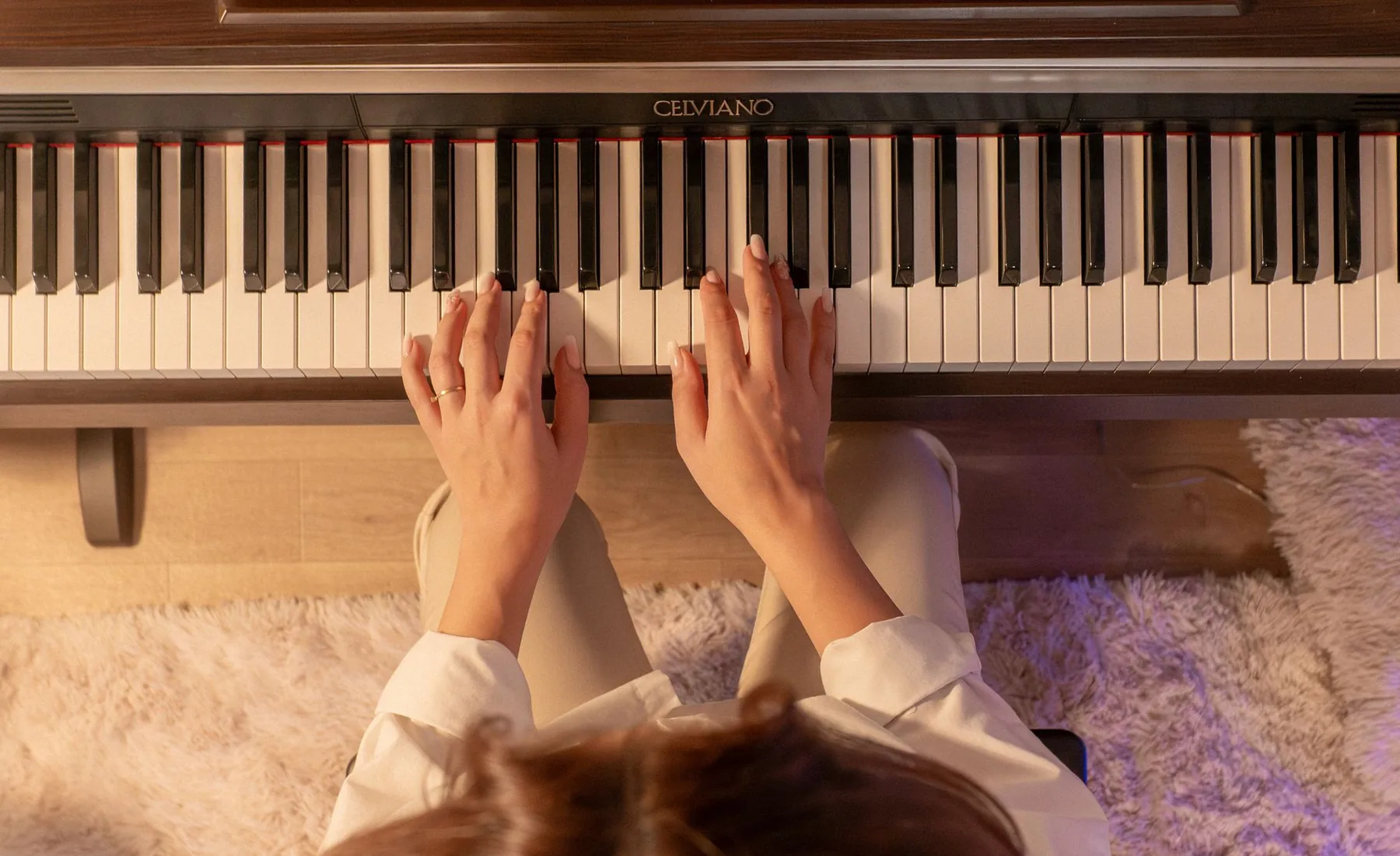
Check Your Digital Piano’s Compatibility
Some models are specifically designed to work with iOS devices. Compatible Yamaha series include:
- Clavinova CLP 700+
- Arius YDP-145+
- P-125
To identify the port type on your instrument, consult its manual or inspect the connector. USB Type-B ports are common on these models.
Choose the Right Cable or Adapter
Your specific cable requirements depend on your iPad:
- Official Apple Lightning to USB 3 adapter
- USB-A-to-B cable for a direct connection
- MD-BT01 wireless module for newer models
Third-party adapters may cause recognition issues. Choose certified accessories whenever possible.
Download the Required Apps
The App Store offers dedicated tools such as Yamaha Smart Pianist. This app allows you to:
- Check for firmware updates
- Configure MIDI settings
- Access built-in tutorials
Make sure your version of iPadOS is up to date to avoid compatibility errors.
How to Connect a Yamaha Digital Piano to an iPad: Key Steps
There are two main ways to synchronize your equipment. Each method has its advantages, depending on your setup and preferences.
Option 1: Connect Using a USB Cable and Lightning Adapter
This solution offers minimal latency, making it ideal for recording. Follow these steps:
- Connect the USB cable to the Type-B port on your instrument.
- Use a Lightning to USB adapter to connect it to the iPad.
- Open the dedicated app, such as Yamaha Smart Pianist.
If the device is not recognized, check your cable requirements. The Apple MD821AM/A adapter is recommended for optimal compatibility.
Option 2: Connect Wirelessly via Bluetooth
Available on newer models, this method eliminates cables. Follow these steps:
- Turn on Bluetooth in the iPad settings.
- Install the MD-BT01 module if your instrument requires it.
- Select your device from the list of available devices.
Latency may be slightly higher over a wireless connection, but it remains imperceptible for most uses.
Tip: On M1 iPad Pro models, enable “Low Latency” mode in the MIDI settings. This improves key responsiveness.
Set Up the Yamaha Smart Pianist App
The Yamaha Smart Pianist app transforms your musical experience. This intuitive software provides access to exclusive features so that you can make full use of your instrument.
Install and Open the App
Download the app from the App Store. For optimal compatibility, check that your iPad is running iOS 13 or later.
After installation:
- Open the app and select your digital piano model
- Allow access to Bluetooth features if necessary.
- Create a user profile to save your preferences.
.
Customize the Audio and MIDI Settings
Optimize the settings to achieve the best sound. The “Settings” tab offers several options:
- Adjust key velocity to suit your playing style.
- Enable automatic accompaniment to play with a virtual orchestra.
- Configure the audio outputs for multitrack recording.
This software also allows you to:
- Sync your creations with SoundCloud.
- Integrate GarageBand for advanced compositions.
- Use Piano Room to simulate different acoustic environments.
Once you master these settings, you can use your instrument for much more than its basic functions. The app then becomes a genuine portable studio.
Make Use of Advanced Features
Advanced features turn your instrument into much more than a simple keyboard. The latest Yamaha digital pianos incorporate professional technologies for sophisticated musical creation.
Use the Device as a MIDI Controller
The MIDI 2.0 protocol offers unmatched precision when controlling music software. Configure your setup in just a few steps:
- Assign specific functions to buttons using custom mapping.
- Use DAW presets for Cubasis or AUM.
- Enable zero-latency monitoring for smooth performances.
“MIDI 2.0 has revolutionized my workflow. The key sensitivity matches my expectations perfectly.”
Record and Edit Your Pieces
Turn your device into a portable studio with these techniques:
- Export your pieces as WAV or MP3 files directly from the app.
- Master overdubbing and punch-in recording for perfect takes.
- Convert your improvisations into sheet music with Score Manager.
These tools make music production accessible to everyone. Whether you are a beginner or an expert, you can enjoy a complete creative environment.
Troubleshoot Common Connection Problems
Technical issues may occasionally arise during synchronization. Don’t panic: most have simple solutions.

Device Recognition Problems
If your iPad does not detect the instrument, start by checking the USB port. A faulty cable is often the cause.
In some cases, the “USB Accessory Needs Power” error appears. Try these solutions:
- Use a powered USB hub.
- Reset the MIDI settings through the app.
- Update the Yamaha firmware.
On an Android device, drivers may cause problems. Choose certified interfaces such as the iRig MIDI 2.
Latency or Sound Errors
Do you notice a delay between pressing a key and hearing the sound? Adjust the buffer size in the Audio/MIDI settings:
| Problem | Solution | Ideal Setting |
|---|---|---|
| High latency | Reduce the buffer size | 128 samples |
| Audio clicks | Increase the buffer size slightly | 256 samples |
| Choppy sound | Close background apps | — |
If the Android device or iPad gets hot, temporarily lower the audio quality. This situation is rare with recent models.
“A loosely inserted connector can cause intermittent errors. Always check this connection first.”
The Best Piano Apps for iPad
The iPad becomes a valuable tool for pianists thanks to specialized software. These apps turn your tablet into a true musical assistant and offer unique features.
Yamaha Smart Pianist
This exclusive software provides access to the renowned CFX and Bösendorfer sounds. It synchronizes seamlessly with Yamaha instruments for an optimal experience.
Its main advantages include:
- Creating personalized playlists suited to your level
- Synchronizing sostenuto pedals via Bluetooth
- An “Audio To Score” feature for generating sheet music
The app is updated regularly, as shown by its recent version 3.7.0. Updates continually improve compatibility and performance.
Flowkey and Other Learning Tools
Flowkey stands out for its innovative teaching approach. The Premium version offers:
- More than 1,500 pieces with real-time tracking
- An optimal setup for online lessons
- Personalized tips to monitor your progress
Other apps are also worth exploring:
| App | Strengths | Ideal For |
|---|---|---|
| Skoove | Voice recognition | Beginners |
| Piano Marvel | Extensive library | Advanced players |
| Simply Piano | Intuitive interface | Children |
“I’ve been using these professional sounds for two years. The difference is striking, especially when working on subtle dynamics.”
These tools make learning more interactive. They adapt to your pace, allowing you to make visible progress in every session.
Benefits of Connecting Your Piano to an iPad
Synchronizing your instrument with a tablet opens up a world of creative possibilities. This modern combination significantly enriches your musical practice.
Access Additional Sound Libraries
Your Yamaha model becomes more versatile with sound expansions. Apps such as Korg Module offer more than 1,500 professional sounds.
Vienna Symphonic Library expansions offer:
- High-definition samples of concert grand pianos
- Various acoustic environments: concert hall, studio, and more
- A Layer function for combining several timbres
“These additional sounds give my instrument a whole new dimension. I can explore very different styles.”
Learn with Interactive Tutorials
Adaptive learning methods are revolutionizing progress. Flowkey reports 40% faster improvement thanks to its intelligent tracking.
The main benefits include:
- Real-time correction of rhythmic errors
- Personalized suggestions based on your level
- A library of pieces organized by difficulty
| App | Specialty | Level |
|---|---|---|
| Skoove | Voice recognition | Beginner |
| Piano Marvel | Advanced technique | Experienced |
| Simply Piano | Gamification | Child |
For a complete experience, explore the detailed features in our Yamaha Smart Pianist guide.
Music becomes more accessible and engaging. These tools turn every session into an opportunity to improve and create.
Alternatives for Incompatible Models
Some older Yamaha pianos require alternative solutions for an optimal connection. Modern mobile devices can still communicate with them by using a few technical workarounds.
External MIDI Interfaces: The Universal Bridge
The iRig MIDI 2 performs remarkably well with iOS. This additional adapter converts five-pin MIDI signals to USB-C or Lightning.
Other reliable options include:
- Roland UM-ONE: compatible with USB-C iPad Pro models
- M-Audio MIDISPORT 2×2: ideal for complex setups
- Certified Anker USB-C hub for multiple connections
For P-45 or P-115 models, a USB-B/MIDI adapter cable often resolves recognition problems.
Third-Party Software Solutions
When hardware reaches its limits, software takes over. Camelot Pro can route MIDI signals between apps on mobile devices.
Key features include:
- Advanced configuration with MIDI Patchbay
- Support for older Yamaha protocols
- Integration with GarageBand and Logic Pro
“MidiFire brought my old keyboard back to life. Latency is below 5 ms on my M2 iPad Pro.”
| Solution | Price | Compatibility |
|---|---|---|
| iRig MIDI 2 | €99 | iOS 14+ |
| Roland UM-ONE | €79 | USB-A to Type-B adapter |
| Camelot Pro | Subscription | iPadOS 15+ |
These alternatives turn an additional adapter into a genuine musical Swiss Army knife. Creativity is no longer limited by technical constraints.
Conclusion
Music technology is evolving rapidly and offering unprecedented creative possibilities. Whether you choose an affordable wired connection or a wireless connection, this article provides solutions for every budget.
MIDI 2.0 promises significant improvements in precision. Remember to check regularly for software updates so that you can benefit from the latest advances.
Basic maintenance will extend the life of your setup:
- Clean the USB ports regularly.
- Use certified cables.
- Adjust the settings to suit your needs.
These connections turn your piano into a creative platform. To learn more, read our iRig MIDI review.
Share your experiences and compositions. Connected music still has many surprises in store for us!



0 Comments